Inicio

El blog sobre Guide Diagnosing Laptop LCD Failures With a Multimeter

Certificación
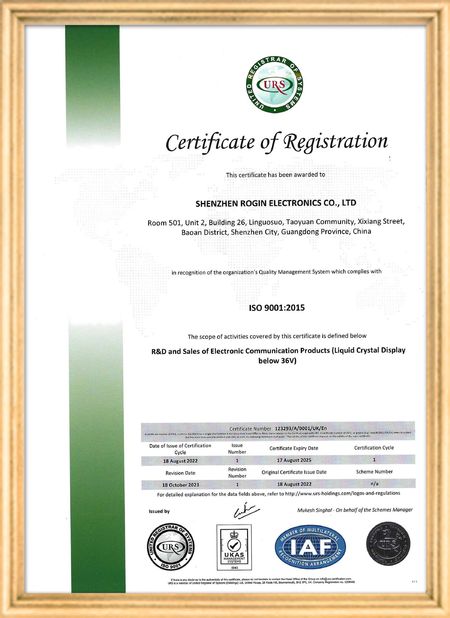
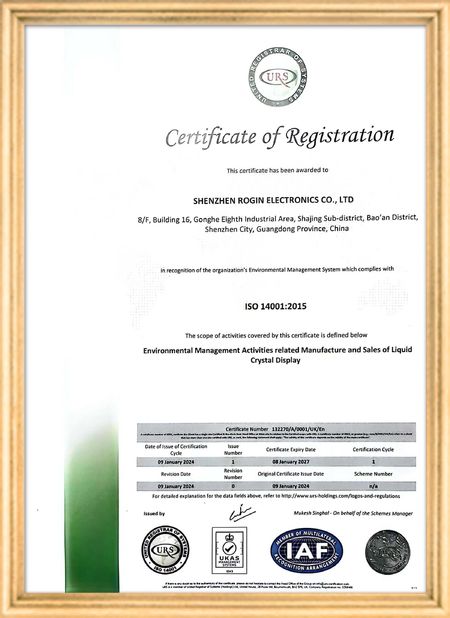
China Shenzhen Rogin Electronics Co., Ltd. certificaciones
Comentarios de cliente
Estas pantallas funcionan perfectamente en los tranvías, con un alto brillo, anti-reflejo y estables incluso bajo vibraciones de larga duración.

—— Kasper Sørensen y sus colegas

Colores precisos, respuesta rápida y arranque normal a baja temperatura, se ajusta perfectamente al duro entorno de los sistemas de tren a bordo.

—— Nicole Becker fue la primera.

Fácil de instalar, amplio rango de temperaturas y excelente visibilidad en ambientes luminosos.

—— - ¿ Qué pasa?

Estas pantallas LCD de alto brillo son perfectas para nuestros paneles de control industrial. Permanecen nítidas incluso bajo la luz solar directa del taller y funcionan 24/7 sin ningún problema. Gran calidad de grado industrial.

—— Lukas Müller

Estoy en línea para chatear ahora
Compañía El blog
Guide Diagnosing Laptop LCD Failures With a Multimeter
últimas noticias de la compañía sobre Guide Diagnosing Laptop LCD Failures With a Multimeter

When your laptop screen suddenly goes dark, don't panic. A simple multimeter can help you quickly identify power supply issues. This guide simplifies the diagnostic process, enabling you to check your LCD screen's power supply and determine whether the problem lies with the screen itself or its supporting components.

Preparing Your Multimeter

Begin by setting your multimeter to measure DC voltage. Before testing, identify your screen's rated voltage—typically marked near the power connector or available in the device specifications. Modern laptop screens commonly operate between 3.3V to 19V, depending on the model.

Testing Procedure

With the laptop powered off, carefully connect the multimeter probes to the screen's power connector terminals:

  • Place the red probe on the positive (+) terminal
  • Place the black probe on the negative (-) terminal or ground

Power on the device and observe the multimeter reading. Compare this measured voltage with your screen's rated voltage.

Interpreting Results

If the reading shows significantly lower voltage than specified or no voltage at all, potential issues include:

  • Faulty power adapter
  • Damaged motherboard power circuits
  • Loose or damaged cable connections

Systematically check each component: try a different adapter, inspect motherboard connections, and reseat all cables. If voltage readings return to normal after any intervention, you've likely found your culprit.

When voltage measurements match specifications but the screen remains nonfunctional, the issue may involve the LCD panel itself, the backlight, or other screen components requiring further diagnosis.

Safety Considerations

Always disconnect power before handling internal components. When working with exposed connectors, avoid touching multiple contacts simultaneously to prevent short circuits. These basic diagnostic techniques provide valuable information for determining whether to repair or replace components.

Tiempo del Pub : 2026-05-18 00:00:00 >> Blog list
Contacto
Shenzhen Rogin Electronics Co., Ltd.

Persona de Contacto: Mr. Kelvin Zhu

Teléfono: +86 15919061504

Envíe su pregunta directamente a nosotros (0 / 3000)